Network Storage
Download PDF
Page displaying a list of network storages (shared folders/shares). The table shows the following storage characteristics:
- Scanning enabled/disabled per schedule
- Name
- Server (IP)
- Path
- Scanning schedule (configurable)
- Scanning type: full or quick. Quick - skips files scanned per schedule for the period set in the "Days until expiry" field.
- Preset name
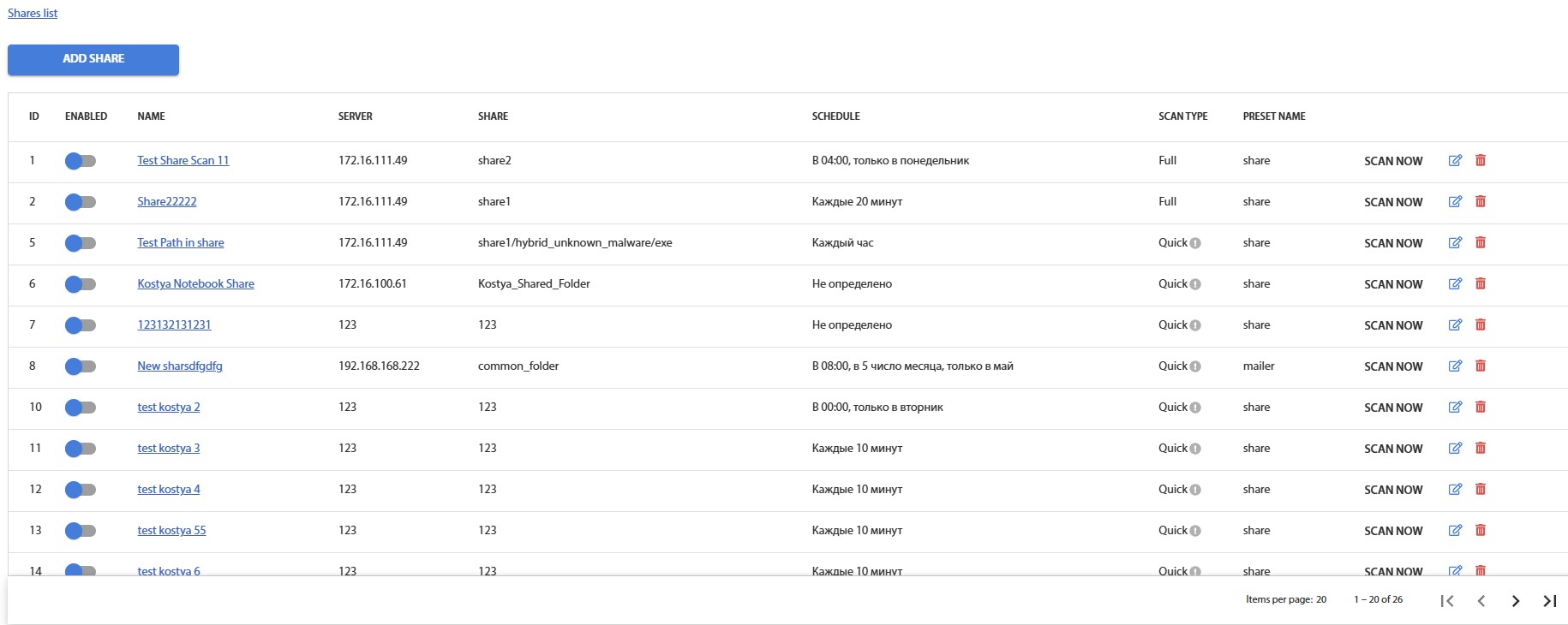
Figure 4.8.1 - Network Storage Table
To view scanning sessions for a specific storage, click on the storage name

Fig. 4.8.2 - Link to scanning sessions
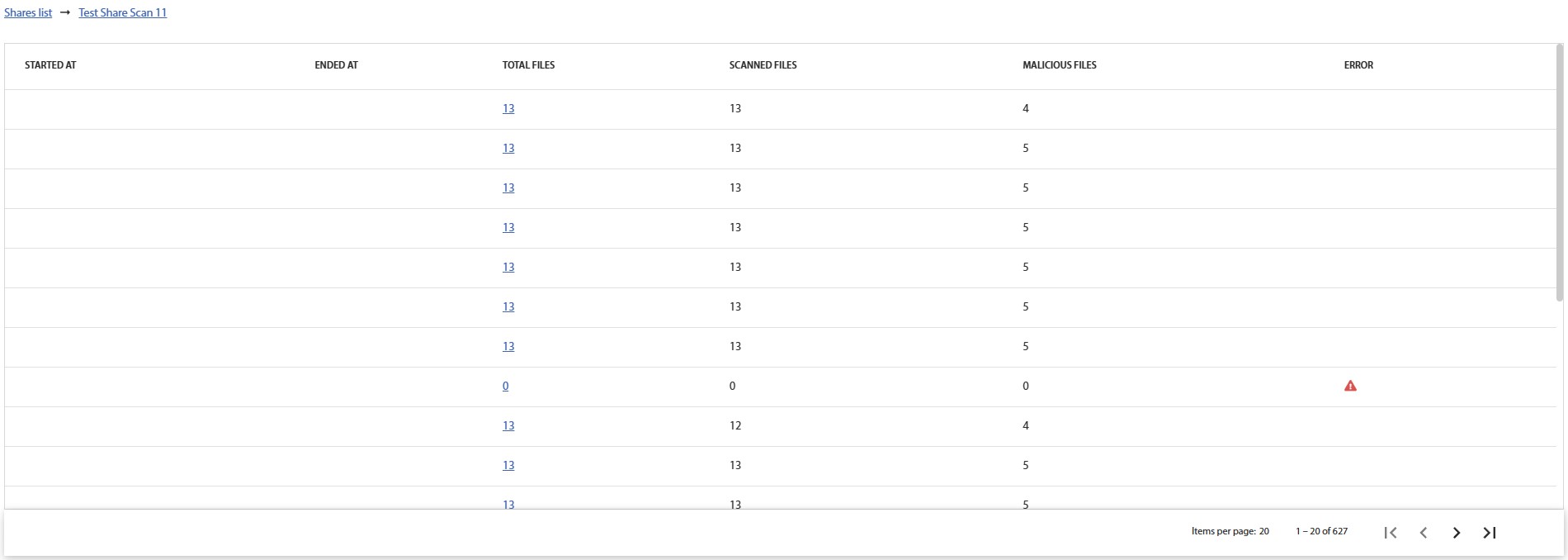
Fig. 4.8.3 - Storage scanning sessions table
During the storage scanning, there's a possibility of encountering an error. If an error occurs, an error icon will be present in the "Error" column . Clicking on this icon will display a description of the error.

Fig. 4.8.4 - Error description during scanning

Fig. 4.8.4.1 - Navigation on the network storage page
Navigation on the page is done by clicking on the links in Figure 4.8.4.1
To view the list of files that have been analyzed during scanning, click on the link that becomes active when you click on the numerical value in the "Total Files" column
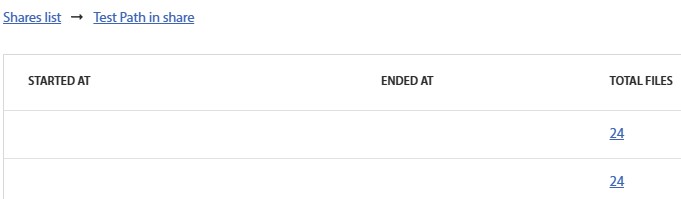
Fig. 4.8.5 - Link to the table of analyzed files
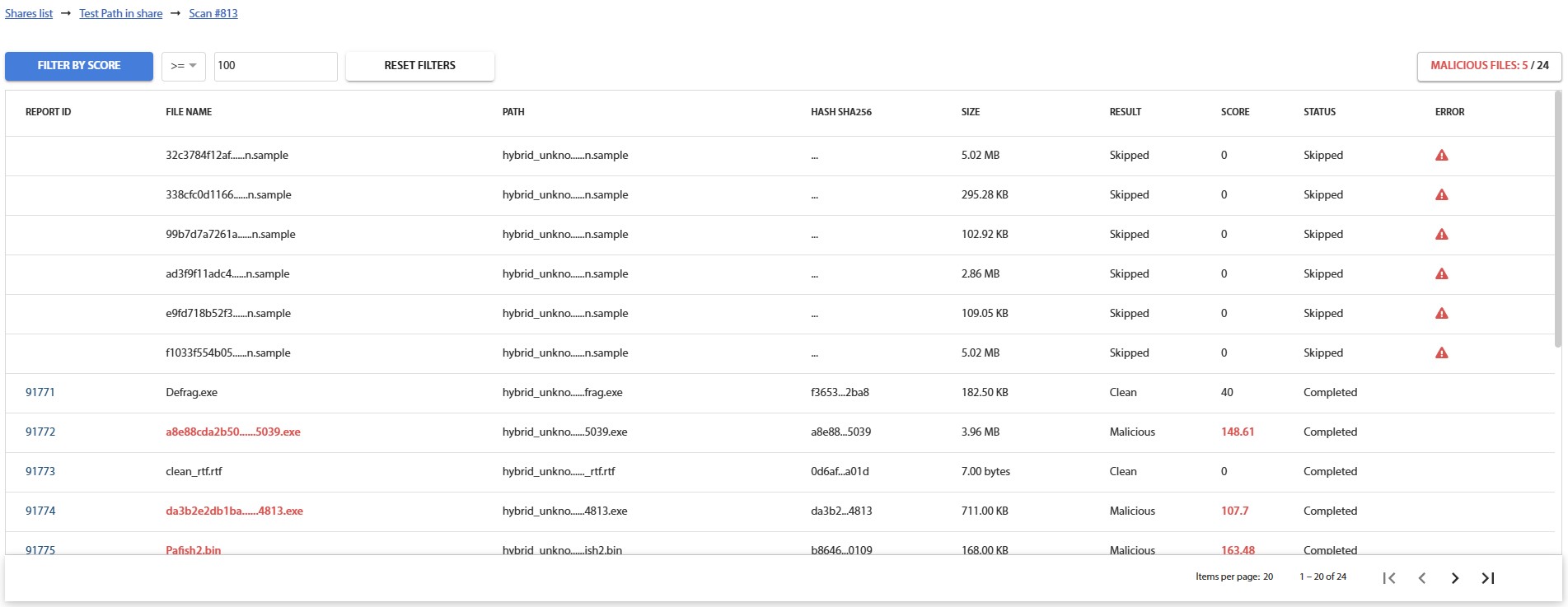
Fig. 4.8.6 - Table of analyzed files
To access the report for the analysis of a file, click on the report number in the "Report Number" column