User Administration
Download PDF
Displays a list of all users. In this section, you can create a new user (Add Account), change the password for an existing one (Change Password), and view reports belonging to users (click on the user's login).
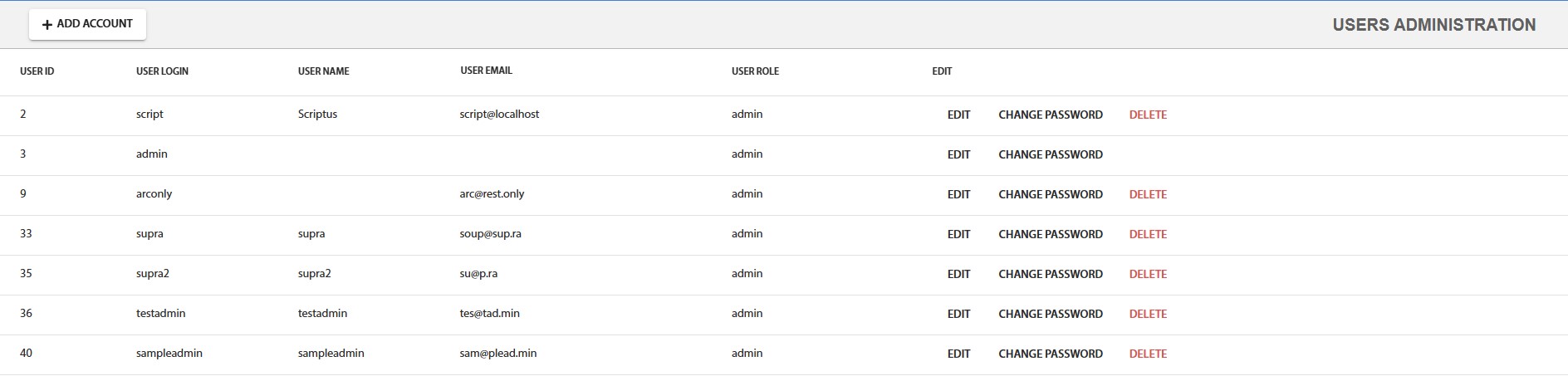
Fig. 2.1 - User table
Changing a User's Password
Changing a user's password is done by clicking the "Change Password" button in the column corresponding to that user in the table. When the button is clicked, a modal window opens in which you need to set a new password.
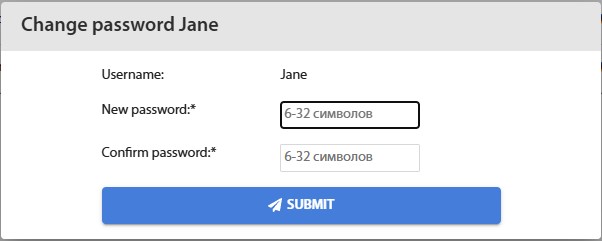
Fig. 2.2 - Password change window
Creating New Users
Creating new accounts is carried out by the administrator on the User Administration page in the top right menu. "Add Account" opens a form to create a new user. Email, login, and password are mandatory fields. The user can change their password by themselves.
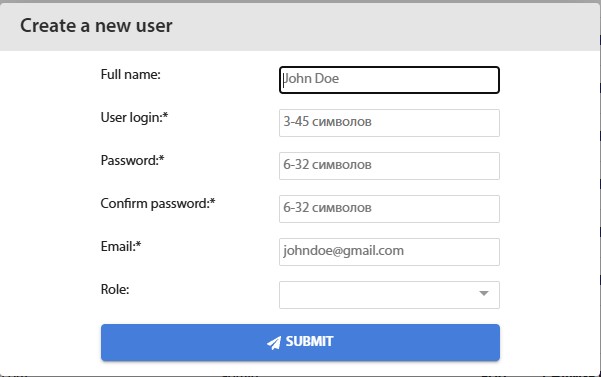
Fig. 2 - New user creation form
Editing Users
Editing user data is done by clicking the "Edit" button in the column corresponding to that user in the table. When the button is clicked, a modal window opens in which you need to enter the new data.
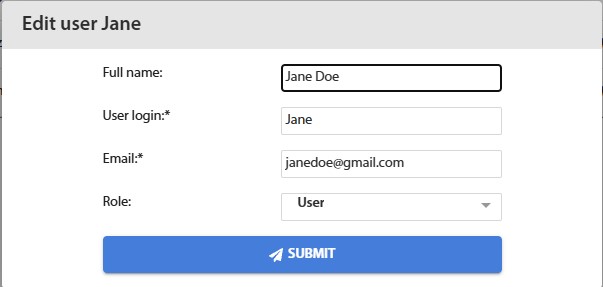
Fig. 2.3 - User editing window
User Roles
The system supports the following user roles: regular user, expert, and administrator.
In regular user mode, the following capabilities are provided: uploading files for analysis and viewing reports on the uploaded files. Regular users can see their own
reports and reports with open access.
In expert mode, there is the ability to set verdicts for analyzed objects, as well as all the capabilities of a regular user.
A system user with an administrator role has the capabilities of both an expert and a regular user, plus a settings panel for component parameters and user management. The administrator can see the reports of all users.